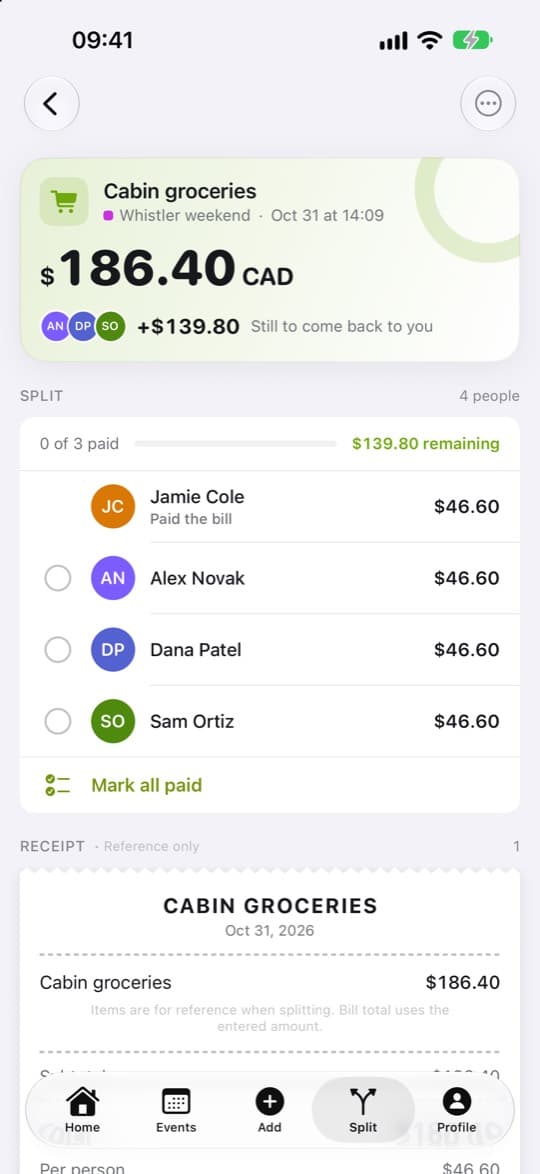
Guide / Split a bill
Split a bill
1
Tap Add, then Group bill
The Add button sits in the middle of the tab bar, and every kind of new item starts there.
Add > Group bill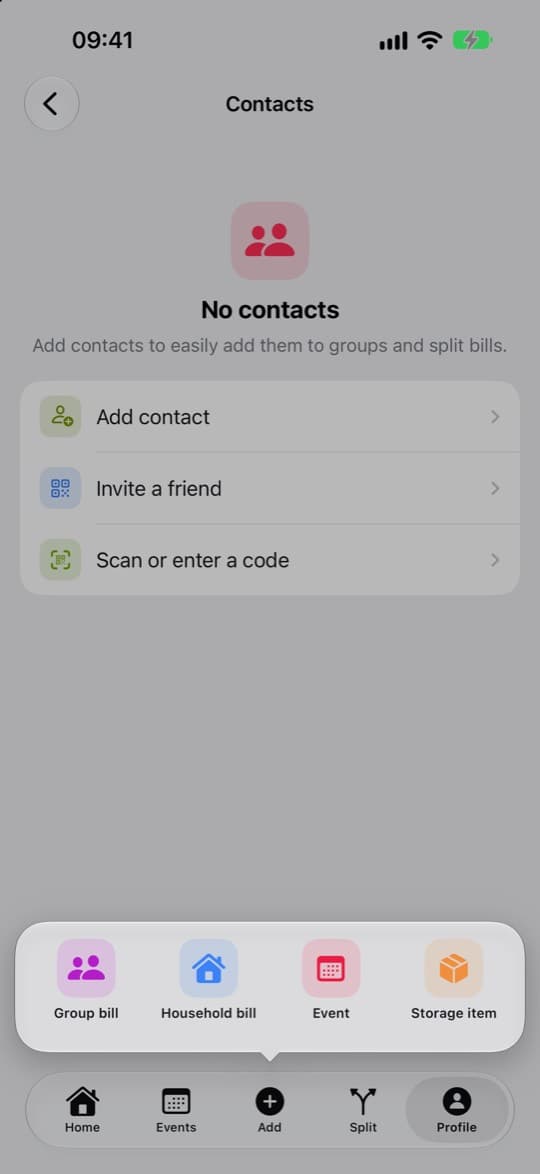
2
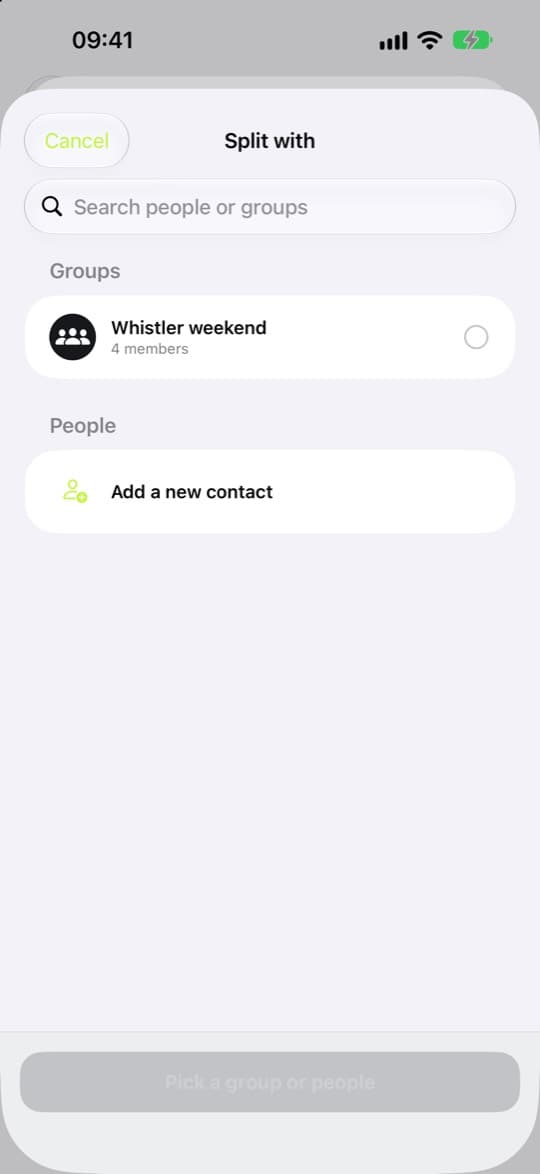
Choose who it’s with
Under Split with, pick a group or just the people. If you pick people with no group, Chiipin creates one for you.
3
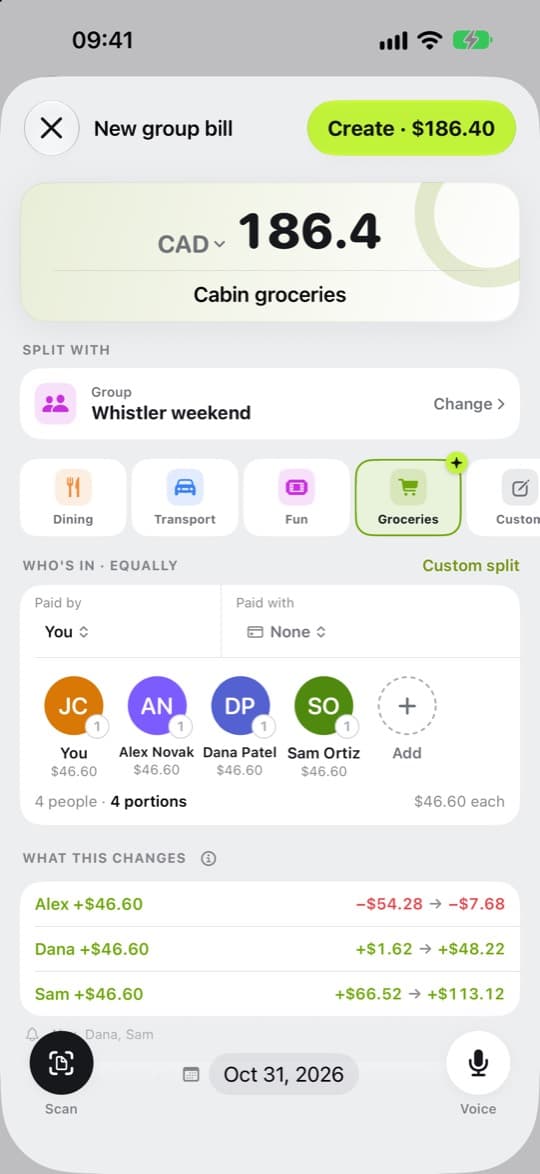
Enter the amount, or scan the receipt
Type the amount, or tap Scan and take a photo of the receipt or choose one from your library. For a bill shared item by item, with tax and tip, use Advanced split.
4
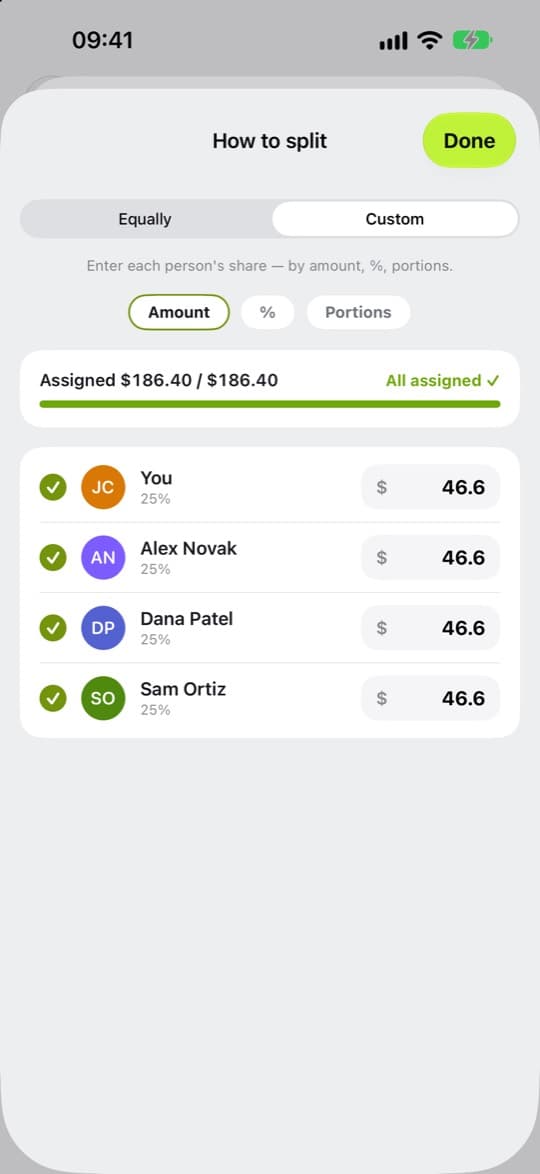
Choose how to share it
Split equally, let each person pay their own, or set custom shares by amount, by percent or by portions. Check who it says under Paid by.
5
Tap Create
The bill is added and each person’s share shows on it.